
Your first translation
By the end of this page you’ll have:
- Scanned a sandbox org
- Filtered to a handful of custom fields
- Batch-translated them to a target language with AI
- Deployed the result back to Salesforce
Total time: under ten minutes. Cost: a few hundred characters of AI credit.
1. Pick a safe target
Section titled “1. Pick a safe target”Do this on a sandbox first, never directly on production. TranSFlator deploys are atomic and can be rolled back, but confidence is cheaper than regret.
Open the sandbox connection you made in Connect your Salesforce org.
2. Scan
Section titled “2. Scan”The app scans your org on first open. Depending on org size this takes 10 seconds to a few minutes. You’ll see the translation grid populate with every translatable element: custom fields, picklist values, record types, help text, layouts, web links, validation rules, custom labels.
3. Narrow down
Section titled “3. Narrow down”Click the Filter icon and pick Custom Field → Label to limit the grid to just custom field labels. Check the box in the Missing column to show only rows that haven’t been translated yet. You should be down to a few rows.
4. Pick a target language
Section titled “4. Pick a target language”Click the language picker at the top and pick a language you don’t already have translations for (e.g. Polish). The grid now shows source on the left, target column on the right, empty.
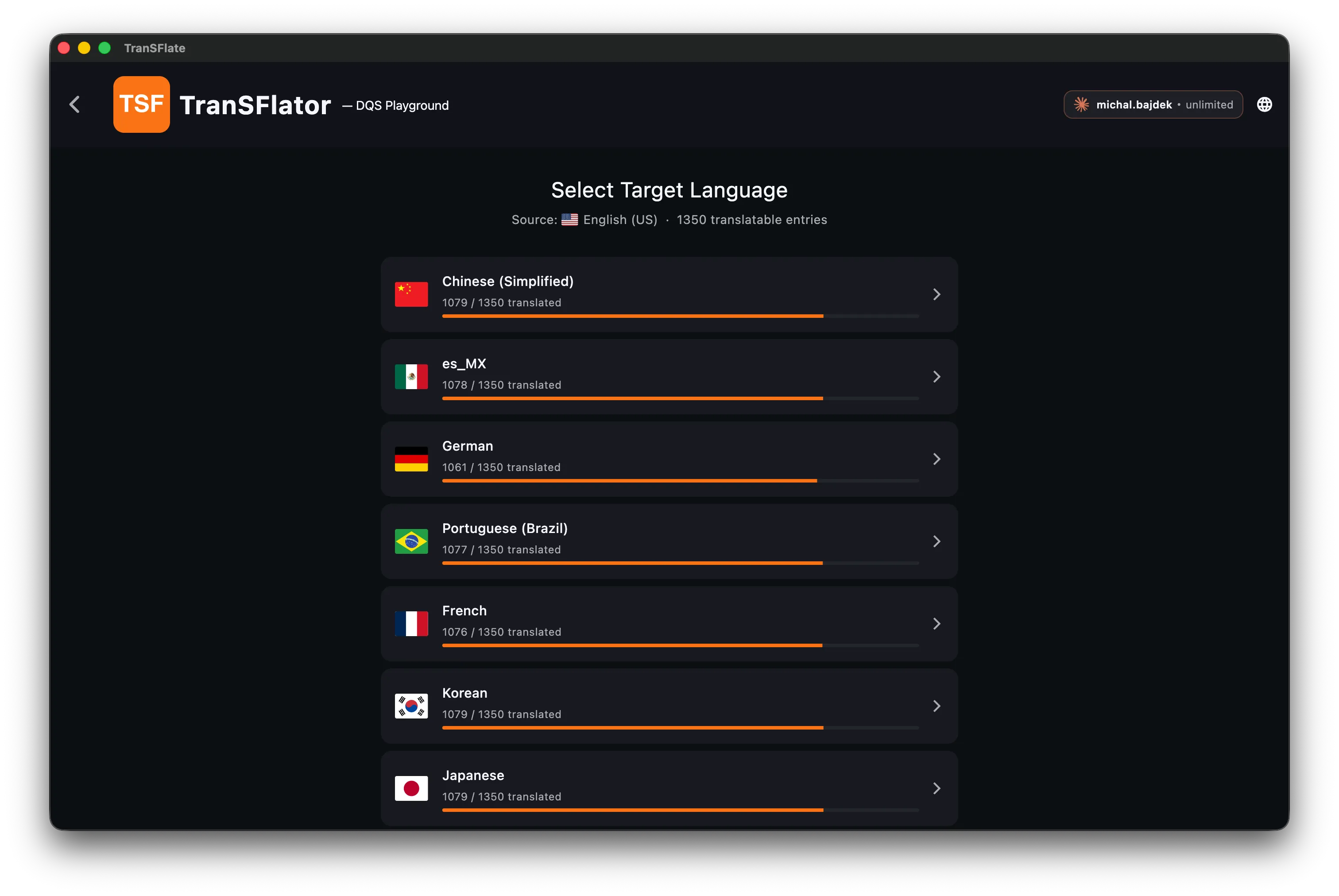
Each row shows how many of the translatable entries are already covered in that language — a quick way to spot which locales need attention.
5. Translate
Section titled “5. Translate”Click AI all on the top bar. A dialog appears asking which AI engine to use — pick one. See Engines overview if you’re not sure.
The app sends each row to the TranSFlator backend, which routes the request to the engine you picked. Results stream into the grid as they come back. You can edit any row by hand — the AI suggestion becomes a starting point, not a final answer.
6. Deploy
Section titled “6. Deploy”Click Deploy. The app packages the changes into a metadata deployment, signs the request with your connection’s access token, and pushes it to Salesforce’s Metadata API. You’ll see a progress dialog and then either:
- Success — the changes are live in your sandbox.
- Partial failure — the app shows you exactly which components were rejected and why. Most of the time it’s a managed-package field that Salesforce won’t let anyone touch; the app flags these and skips them on retry.
7. Verify
Section titled “7. Verify”Open your sandbox in a browser, switch the UI language to the one you just translated, and check that the custom fields read as expected.
Ready to go wider? Read Batch AI translation for the full capability set.