
Dashboard
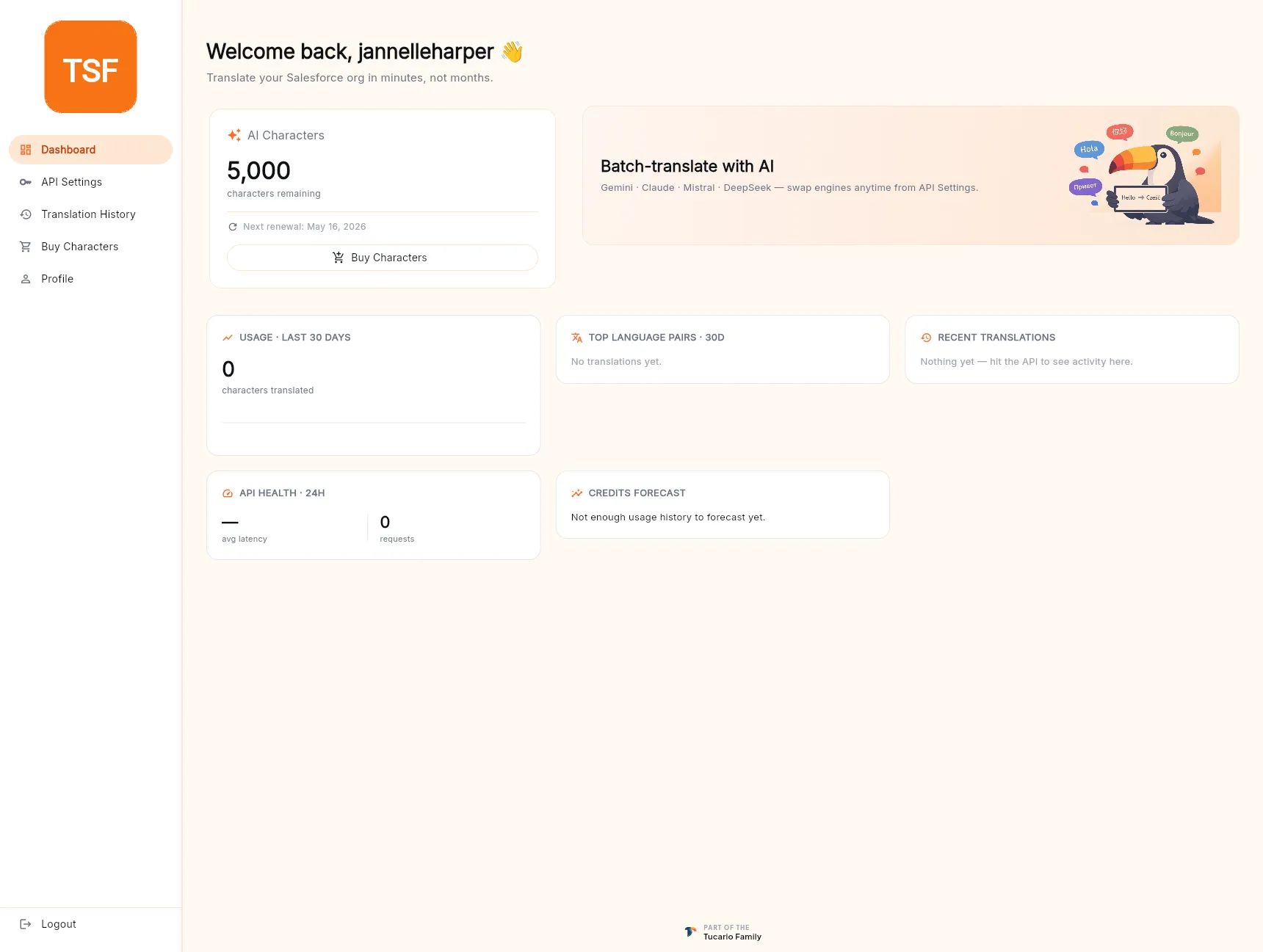
The dashboard is what you see immediately after sign-in. It answers the three questions you usually come to the panel for: how many credits do I have left, is the API healthy, and how much have I translated lately.
What each tile shows
Section titled “What each tile shows”AI Characters — your current credit balance and the date of the next renewal (free plan: every 30 days, paid plans: your billing cycle’s first day). The Buy Characters button jumps straight into the purchase flow.
Batch-translate with AI — a reminder of which engines are wired up (Gemini · Claude · Mistral · DeepSeek) and that you can swap between them at any time from API Settings.
Usage · Last 30 days — a running count of characters translated in the last 30 days across every engine. Useful for eyeballing whether your free allowance will last the month.
Top language pairs · 30d — ranked list of your most-used source→target pairs. Empty on a fresh account; populated automatically once you run your first batches.
Recent translations — a tail of the most recent rows you’ve translated. Clicking into Translation History (left sidebar) opens the full log.
API Health · 24h — average latency and request count against your API token over the last 24 hours. If you see a spike in latency or requests you didn’t initiate, rotate the token immediately (see API settings).
Credits forecast — a naive projection of when your current balance will run out, based on your recent usage trend. Populates after a few days of activity.
First-run onboarding
Section titled “First-run onboarding”New accounts that have just verified their email are routed through a two-step onboarding flow before the dashboard loads for the first time.
Step 1 — Choose your AI engine
Section titled “Step 1 — Choose your AI engine”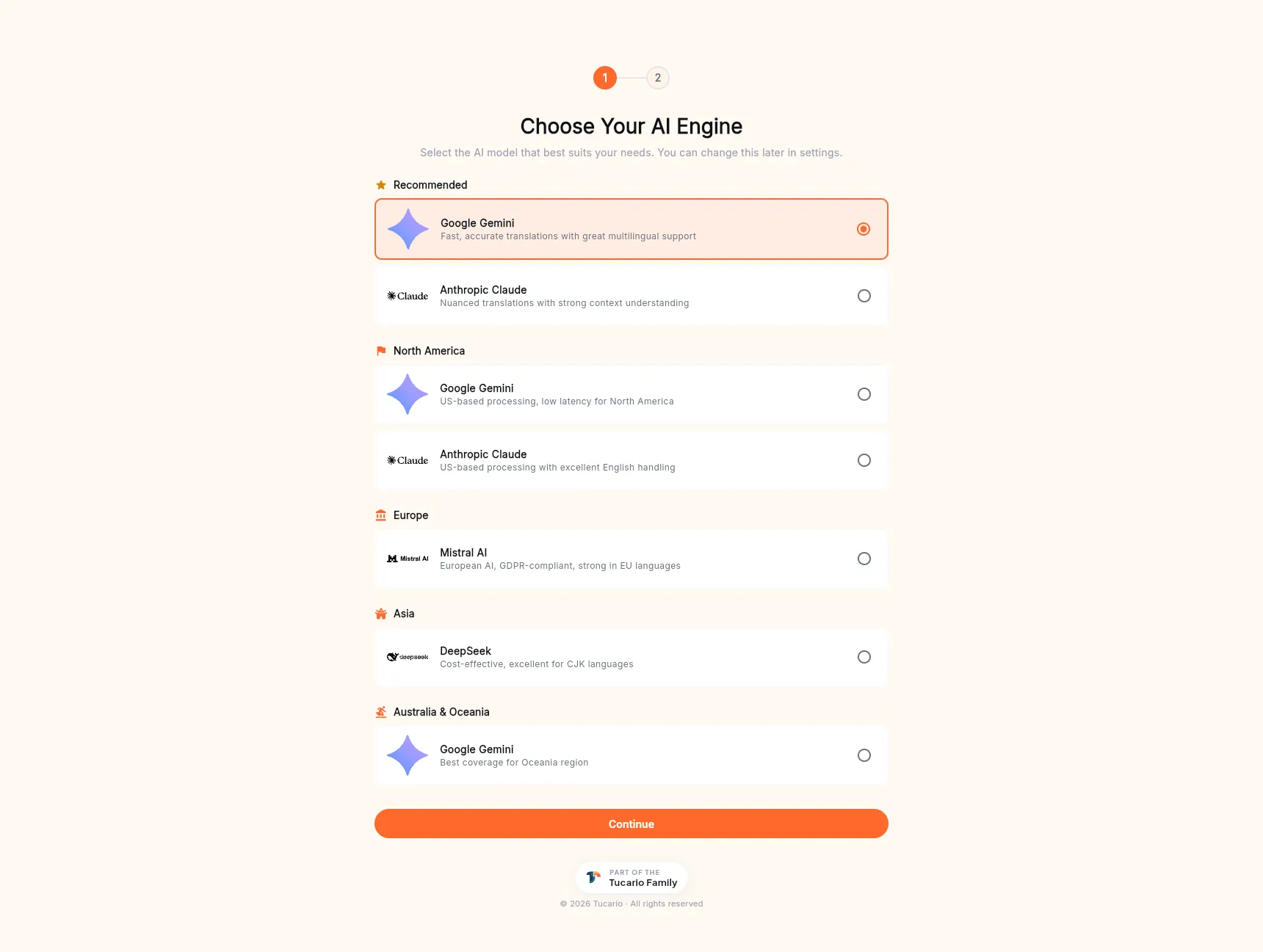
TranSFlator works with four AI engines; you pick one as your default for new batches. The picker groups them as:
- Recommended — general-purpose defaults: Google Gemini for fast, accurate multilingual translation; Anthropic Claude for nuanced, context-aware work.
- North America — US-based processing for low-latency NA traffic.
- Europe — Mistral AI, GDPR-compliant and strong on EU languages.
- Asia — DeepSeek, cost-effective and strong on CJK.
- Australia & Oceania — Gemini, best regional coverage.
The choice is not locked in. You can swap engines at any time from the API Settings screen or in the desktop app’s batch configuration.
Step 2 — Choose your plan
Section titled “Step 2 — Choose your plan”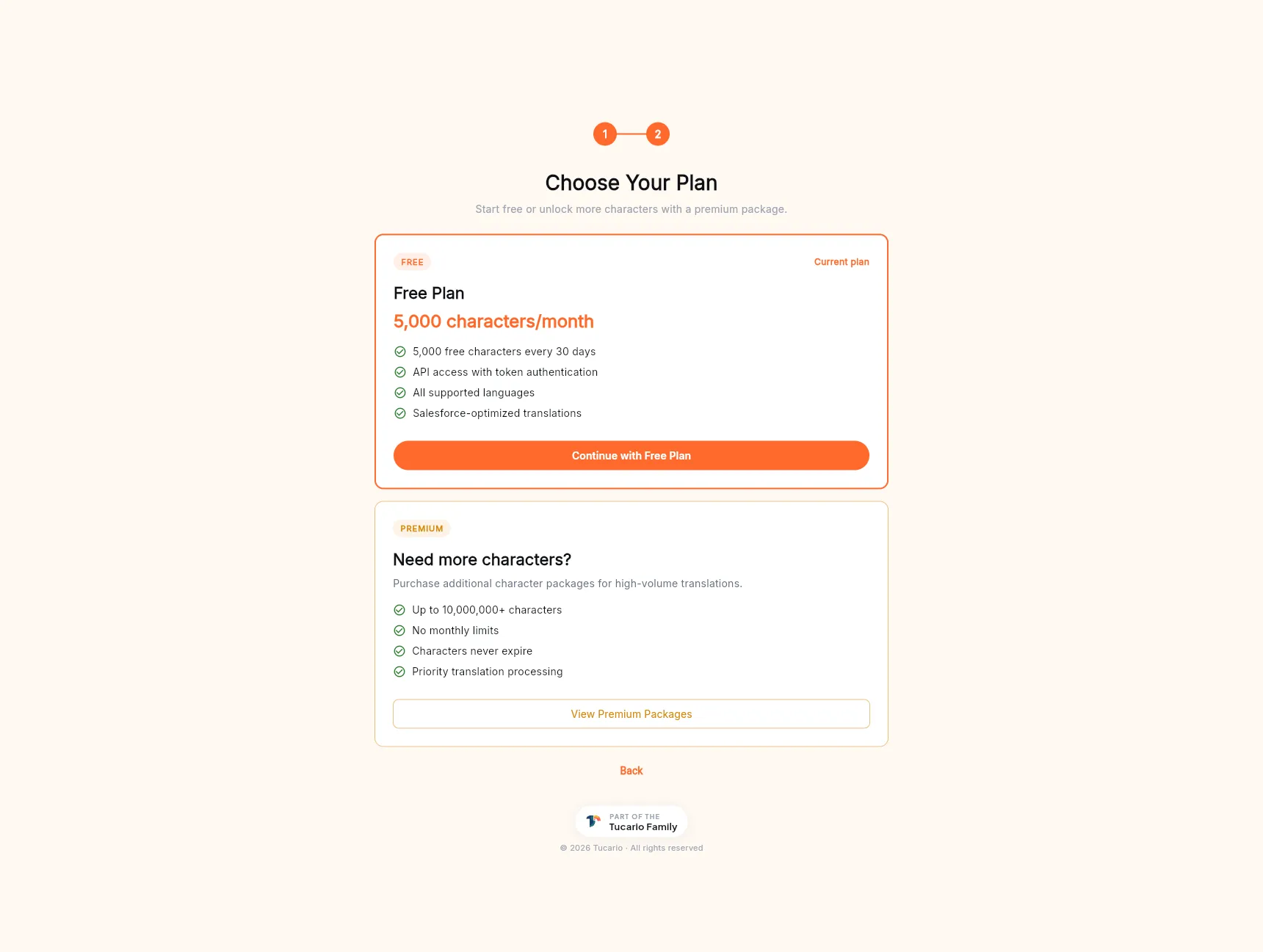
The free plan (5,000 characters per 30 days, API access, all supported languages) is enough to evaluate TranSFlator end-to-end and even cover small orgs. For higher volumes the Premium card opens the package picker — see Buying credits for details.
Click Continue with Free Plan to finish onboarding and land on the dashboard. You can purchase packages at any later point from the dashboard’s Buy Characters button or the sidebar Buy Characters entry.