
Batch AI translation
Batch AI translation is the feature that makes TranSFlator worth installing. Select rows, click AI all, pick an engine, and the app streams translations back from the AI provider into the grid as they come.
Starting a batch
Section titled “Starting a batch”- Filter and search the grid until only the rows you want to translate are visible.
- Click Select all visible (⌘/Ctrl + Shift + A).
- Click AI all in the toolbar.
- Pick an engine and a region.
- Confirm.
Engine selection
Section titled “Engine selection”The picker shows every engine you have enabled on your account and the estimated cost for the selected rows. See Engines overview for the comparison.
Region selection
Section titled “Region selection”Where geographically the translation request is processed. Relevant for data-residency requirements — some AI providers let you pick between US, EU, Asia, and Australia. TranSFlator forwards your region choice to the backend, which in turn routes the request to the correct provider endpoint.
Live progress
Section titled “Live progress”A banner at the bottom shows rows completed / total, current rate, and estimated time remaining. You can cancel mid-batch — rows that already came back are kept in the grid (not yet saved to the workspace; save with ⌘/Ctrl + S).
Failures
Section titled “Failures”If the AI provider rejects a specific row (too long, unsupported characters, content-policy block), that row stays empty and the error is logged in the sidebar. Failed rows can be retried individually or skipped entirely.
Cost model
Section titled “Cost model”Each batch consumes AI credits from your account balance. Credits are consumed per-character of the source string, not per row — a 10-character field label costs 10 credits no matter which engine you use. See AI credits for the full pricing model.
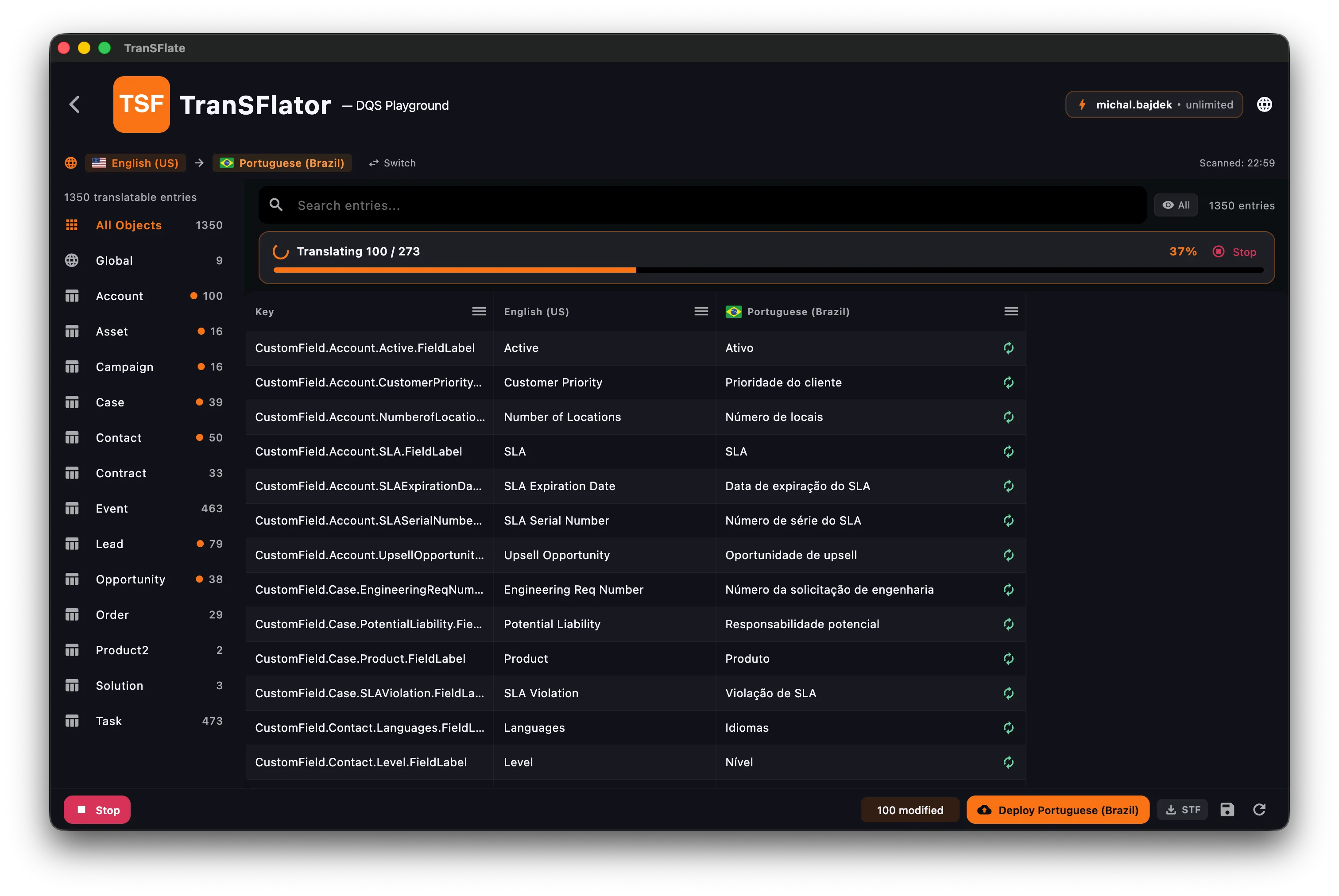
The progress bar at the top of the grid is live: rows get filled in as the AI responds, and Stop cancels the remaining requests without losing the rows that already came back.